Every screenshot,
sorted.

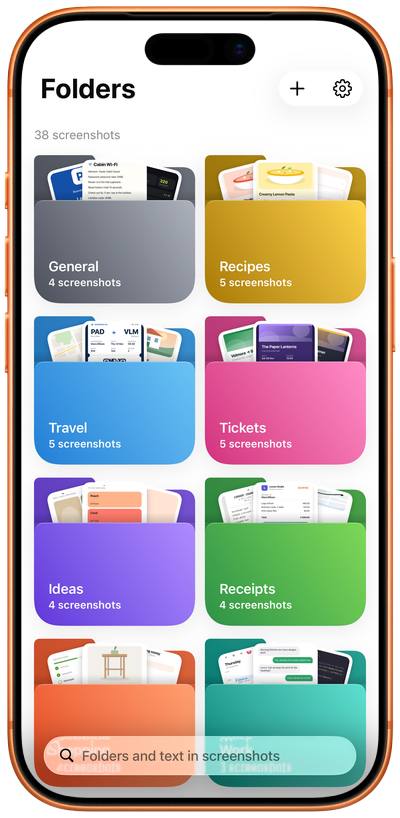
Shotbox’s Folders screen, each folder in its colour

What Shotbox does

Shotbox puts every screenshot you keep in a folder of its own, so the ones you take to remember something never get lost among your photos. Save it with a double tap and find it later by a word it shows.

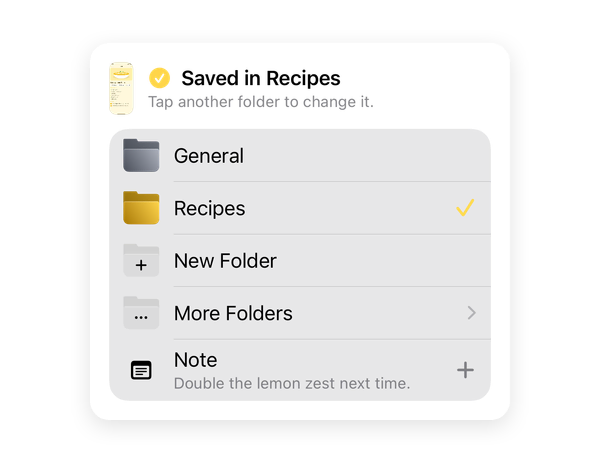
The panel Shotbox opens when you save: the folder the screenshot went to, the other folders and a note

Save with a double tap

Tap the back of your iPhone twice and pick the folder, without leaving the app you’re in. The Action Button and Share › Shotbox work too.

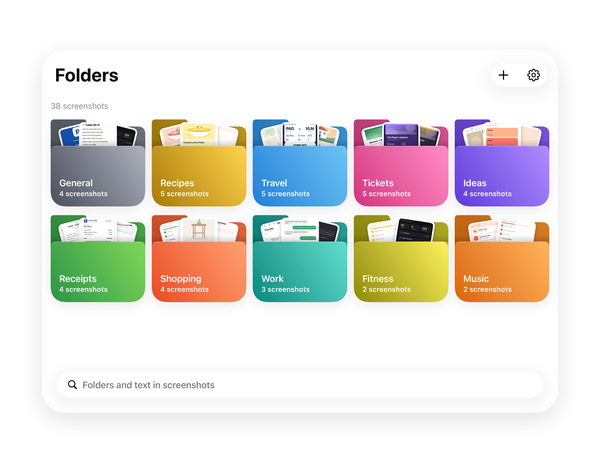
Shotbox’s folders on the open iPhone Duo, ten in two rows

Folders in colour

Name each folder and give it one of 18 colours; each one shows its latest screenshots at a glance. On iPhone Duo, more fit in each row.
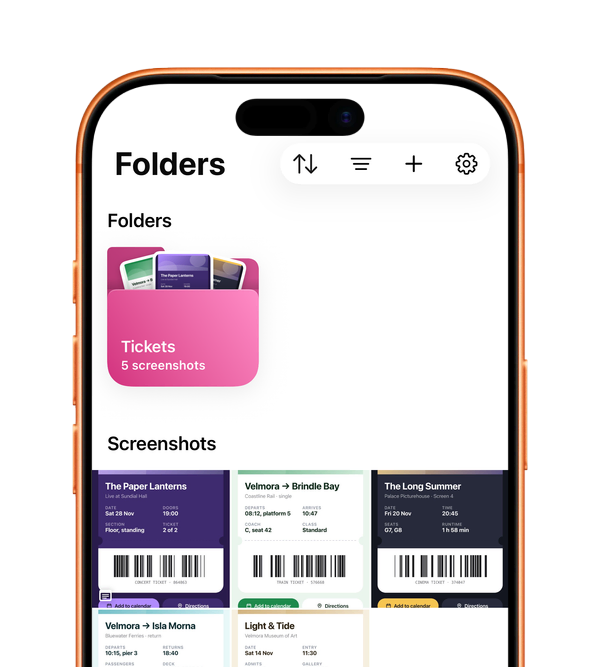
A search in Shotbox: the folder and the screenshots that match

Find them by their text

Search for a word you saw and every screenshot that shows it appears. Shotbox reads the text on your iPhone, and searches your notes too.
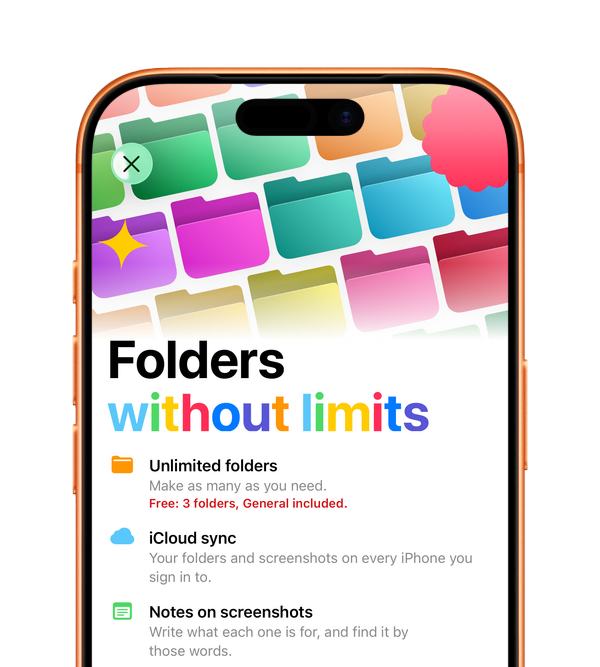
Shotbox Pro: unlimited folders, iCloud sync and notes on screenshots

ProFolders without limits

With Pro: unlimited folders, notes on your screenshots and iCloud sync, so your folders and screenshots are on every iPhone you sign in to.

Features

Everything it does.

Save

Three ways to save

A double tap on the back of your iPhone, the Action Button (iPhone 15 Pro and later), or Share › Shotbox, one or several at a time.

Search

Search inside your screenshots

Shotbox reads the text in every screenshot on your iPhone. Filter by folder and period, and sort newest or oldest first.

NotesPro

Write what each one is for

Add a note from the save panel or the viewer, and find the screenshot later by those words.

iCloudPro

On every iPhone you use

Your folders, screenshots and notes sync through your own iCloud to every iPhone signed in to your Apple Account. Nothing to sign up for.

iPhone Duo

Made for iPhone Duo

Open it and nothing stretches: more folders and screenshots fit in each row, and a screenshot’s note opens in a column beside it.

Private

Private by design

Shotbox never reads your photo library and has no server of its own. No account, no ads, no tracking.

Plans

Free to start. More with Pro.

Download Shotbox and start sorting your screenshots.

Shotbox

Free to download

3folders

  • General included
  • Save with a double tap, the Action Button or Share
  • Search by any word a screenshot shows, read on your iPhone
  • No account, no ads, no tracking

Shotbox Pro

Monthly or yearly

Unlimitedfolders

  • Notes on screenshots, found by their words
  • iCloud sync on every iPhone you sign in to
  • Everything in the free version

Monthly or yearly, at the price the App Store shows before you subscribe. The yearly plan starts with a 7-day free trial for new subscribers; cancel before it ends and you are not charged.

FAQ

Frequently asked questions.

Everything you need to set up Shotbox.

How do I save with a double tap?

Back Tap and the Action Button use the Save Screenshot shortcut. Sharing a screenshot does not need it. Shotbox gives you the shortcut: set it up once.

  1. In Shotbox, go to Settings › Set up how to save (or tap the card on Folders before your first screenshot). Tap Add the shortcut and add Save Screenshot in Shortcuts.
  2. On your iPhone, go to Settings › Accessibility › Touch › Back Tap › Double Tap or Triple Tap › Save Screenshot. Pick one and keep the other free for something else.
  3. Open any app and tap the back of your iPhone. The first time it runs, Shortcuts asks whether it can share the image with Shotbox. Tap “Always Allow”.
  4. A small panel opens over the app you’re in: “Where shall I put it?” The screenshot is already safe in General. Tap a folder to move it there, or New Folder to create one; with Pro, Add Note.
Can I use the Action Button?

iPhone 15 Pro and later. With the shortcut added (step 1 above), go to Settings › Action Button › Shortcut › Save Screenshot, then press the Action Button in any app.

You can also run Save Screenshot from the Shortcuts app, with the same result.

Can I save without the shortcut?

If you’d rather not use the shortcut: take a normal screenshot and send it to Shotbox from the share sheet. This one needs no shortcut.

  1. Take a screenshot as usual, with the side button and volume up. Then open it: tap its thumbnail, or find it in Photos.
  2. Tap Share, then Shotbox. Don’t see it? Swipe the apps to the end and tap More.
  3. Pick a folder. Until you do, the screenshot is already safe in General.

It works the same with any image in Photos, one or several at a time.

How do I restore Pro?

Pro belongs to the Apple Account you subscribed with. On a new iPhone, or after installing Shotbox again:

  1. Check that the App Store is signed in with that Apple Account.
  2. In Shotbox, open Settings (the gear at the top of Folders) and tap Restore purchases. The plans page has Restore Purchases at its foot too.

If Shotbox says “Nothing to Restore”, this Apple Account has no Pro subscription. If you subscribed with a different one, sign in with it in the App Store and try again.

How does iCloud sync work?

Sync needs three things on every iPhone: Shotbox Pro, iCloud signed in, and the same Apple Account. In Shotbox, Settings › iCloud shows where it stands:

Sync your folders on every iPhone
Sync is part of Pro. Tap it to see the plans, or restore purchases if you already subscribed.
Not signed in to iCloud
Everything stays on this iPhone. Sign in with your Apple Account in the iPhone’s Settings and open Shotbox again.
Another iCloud account
This iPhone is signed in to a different account from the one that synced before. Nothing is shared until you choose: tap Sync with this account to send what’s on this iPhone to it, or sign back in to your usual account.
Your iCloud data was deleted
Shotbox’s data was deleted from iCloud. Nothing is uploaded again until you tap Sync with this account.
iCloud is full
New screenshots stay on this iPhone until there is space. Free some up, or choose a larger iCloud+ plan.
iCloud sync paused
It will try again on its own. Check that the iPhone is online.
Syncing… or Up to date
It’s working. Open Shotbox on your other iPhone and the same folders, screenshots and notes arrive.

Shotbox

Your screenshots,
in one place.

No account, no ads, no tracking.

Download